macOS Document Icons: a composition system exists (good luck finding it!)
How is everyone doing that page curl in their icons anyway?
 MacOS
MacOS
 Spark-Club
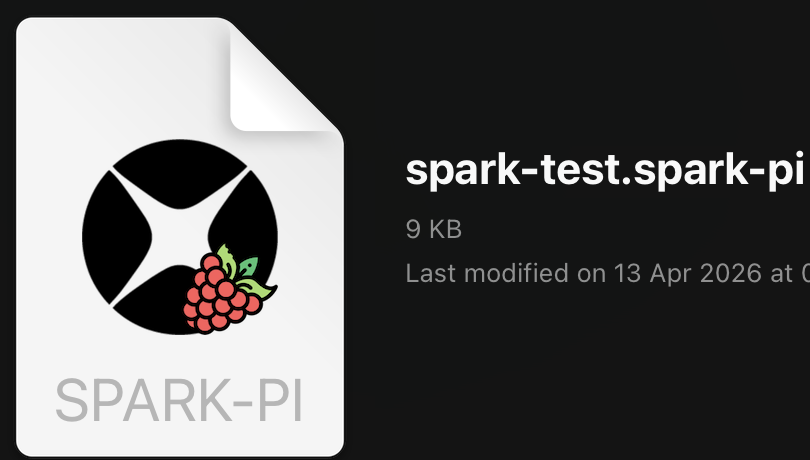
Still building stuff for Spark-Club, and after way too many rewrites of my FFI1, the Spark-Flasher desktop app was coming together, with every new commit bringing either an important feature, or some small UX polish.

While I did dabble in image manipulation2, and had a long Illustrator phase, I am not a designer, not even close. So when I designed the app icon, I just took the Spark-Club logo, slapped a free “flash” icon from Flaticon over it, and I called it a day.
A few commits and features later, as I was learning how to associate the .spark-pi bundles to my application, I noticed they had no icon3. Right, obviously, I needed an icon (or as Apple calls them: “Document Icons”) for the app, and an icon for the documents. If I wanted my .spark-pi files to stand out, I needed to give them identity: this time, I would slap a free “raspberry” icon from Flaticon on top of the logo. Oh well, how hard can that be?
The best-kept secret of macOS app development
Things you can hear in love stories and macOS app development: “How do you turn the page?”
Sure, I can stack layers, but while browsing my Downloads folder to see how other icons worked, I noticed it: they all had the page curl. Yes, you KNOW which one. Every document got it, and it’s almost ALWAYS the same, as if there were a single tool generating them.
But, no, whichever tool I was looking at, even in open-source, and even the official one, I could not find this insidious page curl anywhere! No matter what keywords I used, I would only get results about “Here is how you add the icon you already made like the wonderful person that you are into your app”.
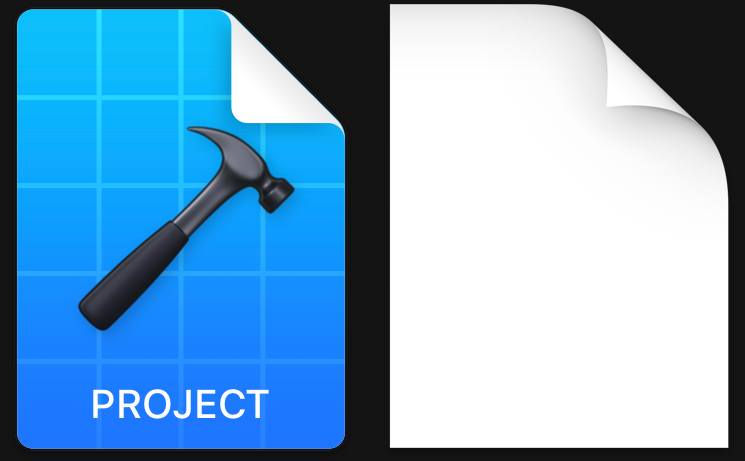
The closest suggestion was to make an icon off Apple’s GenericDocumentIcon.icns4, which…was actually something I could do, but even then, this one had a rounded curl, while most of the icons on my machine used a square curl? The mystery deepened: there were two curls: one was for “real things”, and the other was “generic”, and I didn’t want that for my app!
I was clearly missing something, and the best next step was to gaze at the situation from atop the shoulders of giants. In this case: Transmission. The project was mature, open-source, perfectly integrated, and they had a beautiful document icon, so there should have been something in there, helping me, no? No. Their document icon was a perfect .icns file with raster graphics, and trying to edit my half-assed logo over it was beyond my capabilities.
I was getting nowhere that wasn’t in a frustrated state.
Going to the source
Something great about Apple5, is the rule that “an app made for Apple must work just like any other app on Apple”. That’s how you do proper UX, that’s how you don’t end up with a crazy designer trying to sell you their “framework on design” to justify a huge bill. So clearly, somewhere in their design guidelines, there must have been a guide about that. Luckily for me, there was.
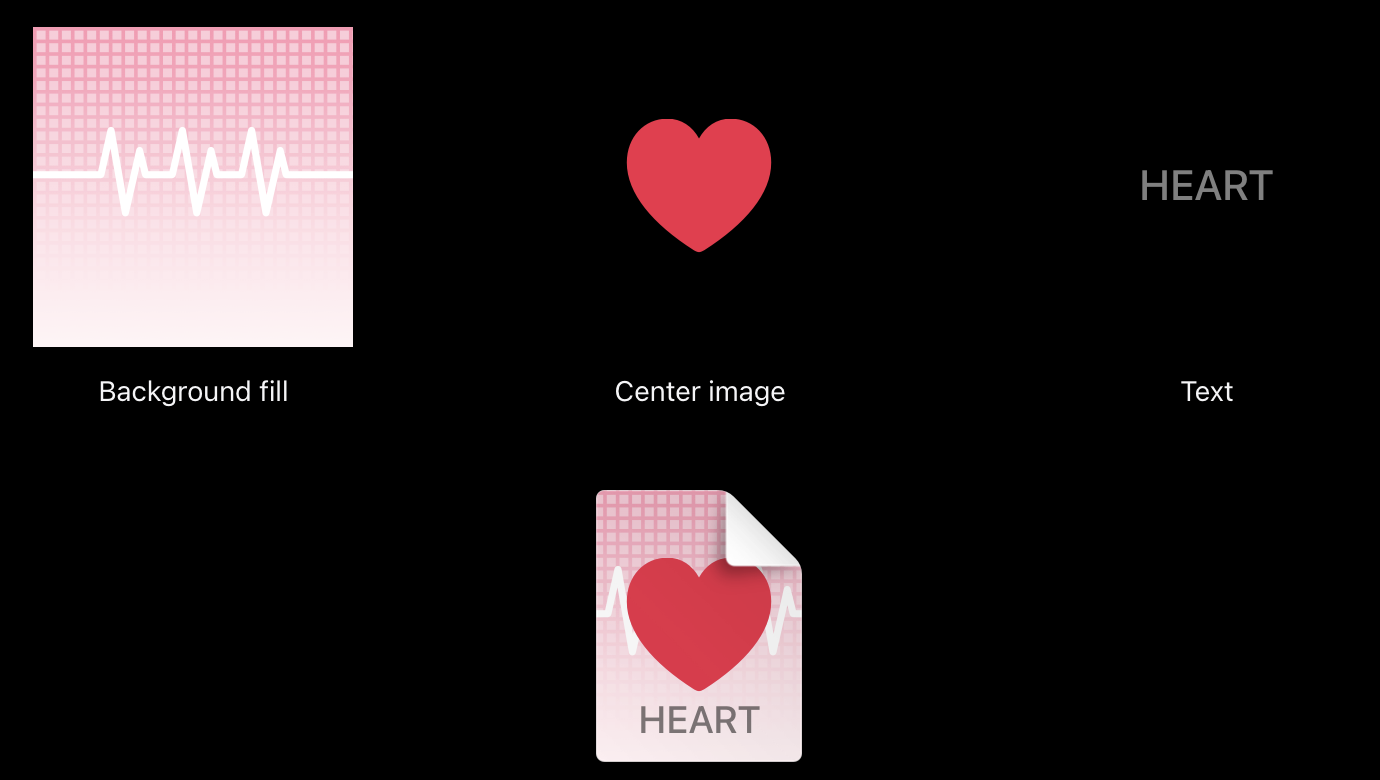
To create a custom document icon, you can supply any combination of background fill, center image, and text. The system layers, positions, and masks these elements as needed and composites them onto the familiar folded-corner icon shape.
(…)
macOS composites the elements you supply to produce your custom document icon.
— Platform considerations - macOS: Document icons
The example was mind-blowing. So that’s how it was working! I scrolled down: a link to the Apple Design Resources promised “a template you can use to create a custom background fill and center image for a document icon”. I clicked, opened it both in Figma and Sketch, and looked up “icon” then “document” in both. Nothing relevant. What the hell!?
I went back to the guidelines and kept reading. It seemed like each of the two elements needed to be in the app as a .iconset. Fine, but that was still not telling me anything about the API in use there!
I kept scrolling until I saw the document icon for the .xcodeproj file type. Yes, I know you, I’m seeing you every day, each time I’m opening you in XCo… Wait a minute.
Dragging the answer out of the corpse
So far, every time I had been opening a FLOSS project’s GitHub6, I was always going straight for the Info.plist file, hoping to find out what was different, and not finding anything. But this time, I knew an app that was doing it, no more prodding in the dark.
I went into XCode’s .app bundle, and looked at Info.plist:
1
2
3
4
5
6
7
8
9
10
11
12
13
14
15
16
17
18
19
20
21
22
23
$ cd /Applications/Xcode.app/Contents/
$ plutil -p Info.plist | grep xcodeproj -A5 -B15
      }
    }
    39 => {
      "UTTypeConformsTo" => [
        0 => "public.composite-content"
        1 => "com.apple.package"
      ]
      "UTTypeDescription" => "Xcode Project"
      "UTTypeIcons" => {
        "UTTypeIconBackgroundName" => "xcode-project-fill"
      }
      "UTTypeIdentifier" => "com.apple.xcode.project"
      "UTTypeReferenceURL" => "http://developer.apple.com/tools/xcode/"
      "UTTypeTagSpecification" => {
        "public.filename-extension" => [
          0 => "xcodeproj"
          1 => "xcode"
          2 => "pbproj"
        ]
      }
    }
Once again, the answer was right in my face. Obviously, it was the UTTypeIconBackgroundName property. I opened a search engine tab, clicked on it. Only two pages, no official API from Apple.
And the first one was a StackOverflow question. I read it with shock: the question described the full API:
1
2
3
4
5
6
7
8
9
<key>UTTypeIcons</key>
<dict>
    <key>UTTypeIconBackgroundName</key>
    <string>Icon Fill</string>
    <key>UTTypeIconBadgeName</key>
    <string>Icon Image</string>
    <key>UTTypeIconText</key>
    <string>Dapka</string>
</dict>
To my horror, the most upvoted answer was a complete dismissal of this API, instead telling the user to use the CFBundleTypeIconFile configuration key to provide a full icon… I looked at the other links: one open-source app
Wrapping
At that point, I had everything I needed: a barely documented API, a couple of scattered examples, and a system that clearly worked. Just not in any way that was discoverable. I wired up my “badge” (attention: it must be a .iconset, using a .imageset won’t work!), killed the Finder, waited for it to restart, and the Spark-Raspberry logo showed up, with a glorious page curl.
What still puzzles me isn’t about how it works, but about how to find it. Looking up CFBundleTypeIconFile on Github gives thousands of results, while the UTTypeIcon* keys barely give more than five hundred each, and while Apple’s own guidelines clearly describe a compositing system, the actual keys (UTTypeIconBackgroundName, etc.) are barely documented and you have to read their app’s Info.plist to get clues, while the internet as a whole will just point you toward “make your own icon and use CFBundleTypeIconFile!”.
In the end, macOS does have a proper document icon composition system, just not one you’re supposed to find easily (or not one anyone bothered to explain properly?), that almost sounds like it’s a private Apple API.
Either way, if you were also wondering where that page curl came from:
Now you too can turn the page.
-
A story for another post, promise. (Update: I kept my promise: No FFI survives contact with the integration) ↩︎
-
In this place, we worship Paint Shop Pro! ↩︎
-
Restarting my Finder would have fixed the association, and they would have gotten the default icon, which is something I admit I did not think of at the time. ↩︎
-
Located in ` /System/Library/CoreServices/CoreTypes.bundle/Contents/Resources/GenericDocumentIcon.icns`. ↩︎
-
Midwits would call it annoying. ↩︎
-
For brevity’s sake, I did not describe ALL the repositories I went to search into… ↩︎